The Vibe Specify’ing Guide: How to Edit Specs Like You Chat with Your AI
This is Vibe Specify’ing (Chat-to-Edit). This guide teaches you how to master the edit flow so you can refine your specifications at the speed of thought, keeping your spec bundle coherent without ever touching a raw markdown file.
The Vibe Specify’ing Guide: How to Edit Specs Like You Chat with Your AI
This is Vibe Specify’ing (Chat-to-Edit). This guide teaches you how to master the edit flow so you can refine your specifications at the speed of thought, keeping your spec bundle coherent without ever touching a raw markdown file.
Why Edit via Chat? (The "Single Source of Truth" Problem)
When you manually edit one file (e.g., design.md), you create spec drift.
You change the DB in design.md but forget to update the constraints in constitution.md.
You add a feature in requirements.md but don’t generate the corresponding tasks in tasks.md.
Vibe Specify’ing solves this by treating your Spec Bundle as a single, interconnected graph. When you issue a command, MySpec’s AI understands the dependencies and updates all relevant files simultaneously, ensuring consistency across the entire bundle.
🚀 Step-by-Step: How to edit your specs
Step 1: Open the completed project and go to Edit mode
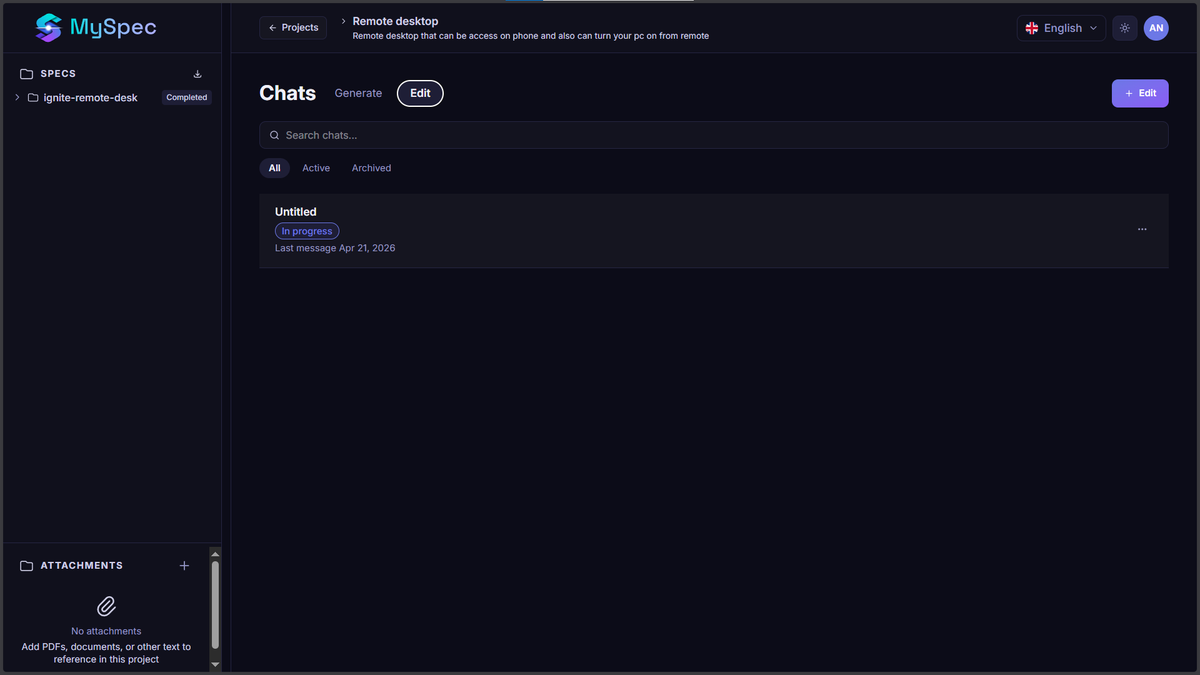
Navigate to your project dashboard. Open project that you have completed. You’ll see Generate mode and Edit mode button near Chats.
Click Edit > +Edit button to open chat to edit your completed bundle (that is shown on the sidebar).
Step 2: Issue Your Command
Be natural but specific. Think of it like delegating to a junior architect.
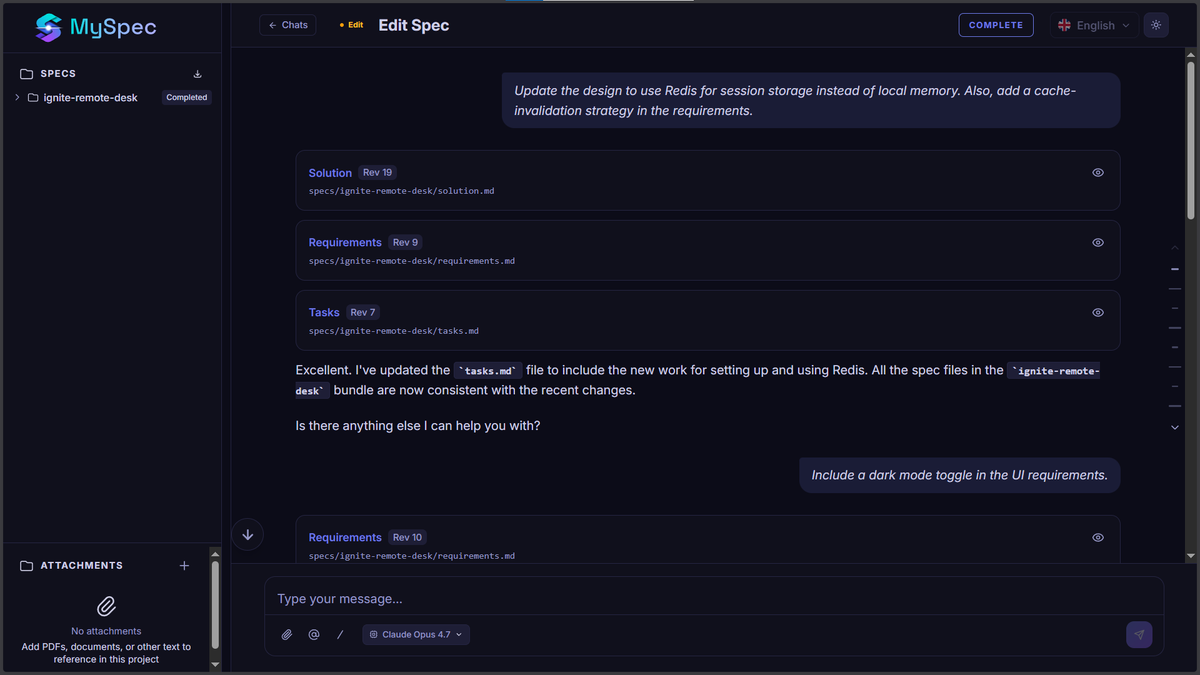
✅ Good Prompt:
"Update the design to use Redis for session storage instead of local memory. Also, add a cache-invalidation strategy in the requirements."
❌ Vague Prompt:
"Make it faster." (MySpec will ask clarifying questions, which slows you down. Be specific about how you want it faster.)
🛠️ The 3 Types of Edits
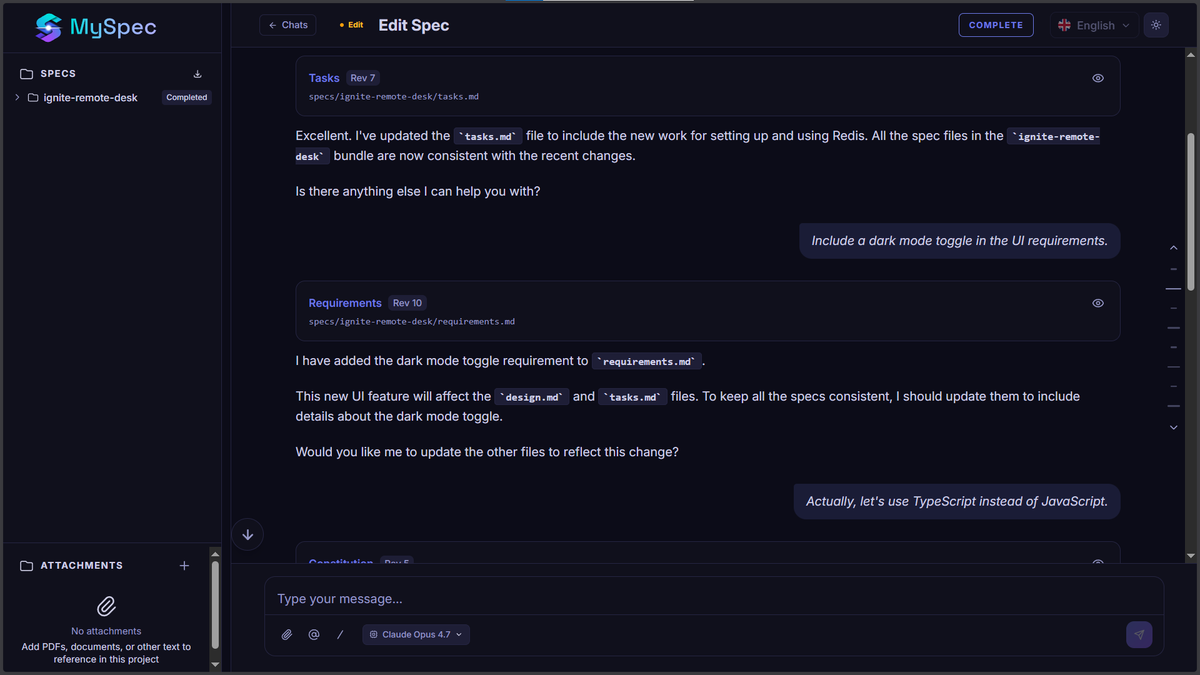
Not all edits are created equal. Understanding the intent behind your prompt helps MySpec give you better results.
1. Additive Edits (New Features/Constraints)
Adding something that wasn’t there before.
Prompt Examples:
"Add OAuth2 login alongside email/password."
"Include a dark mode toggle in the UI requirements."
"Add a 'Export to CSV' feature for the admin dashboard."
What Happens:
requirements.md: New user stories added.
design.md: New API endpoints or UI components defined.
tasks.md: New implementation tasks appended to the relevant phase.
2. Corrective Edits (Fixing Mistakes)
Changing a decision made during the interview.
Prompt Examples:
"Actually, let's use TypeScript instead of JavaScript."
"Change the database from MongoDB to PostgreSQL."
"Remove the OCR feature; it's out of scope for MVP."
What Happens:
constitution.md: Tech stack constraints updated.
design.md: Schema and language-specific patterns refactored.
tasks.md: Obsolete tasks removed or replaced.
3. Refinement Edits (Detail & Tone)
Adjusting granularity, security, or performance without changing functionality.
Prompt Examples:
"Make the API more secure. Add JWT rotation and rate limiting."
*"Break down the 'User Authentication' task into smaller sub-tasks."`
*"Optimize the database queries for high-read scenarios."`
What Happens:
requirements.md: Non-functional requirements (NFRs) tightened.
design.md: Security headers, indexing strategies, or caching layers added.
tasks.md: Tasks split into smaller, atomic units for easier AI coding.
Step 3: Review the Diff (Crucial Step!)
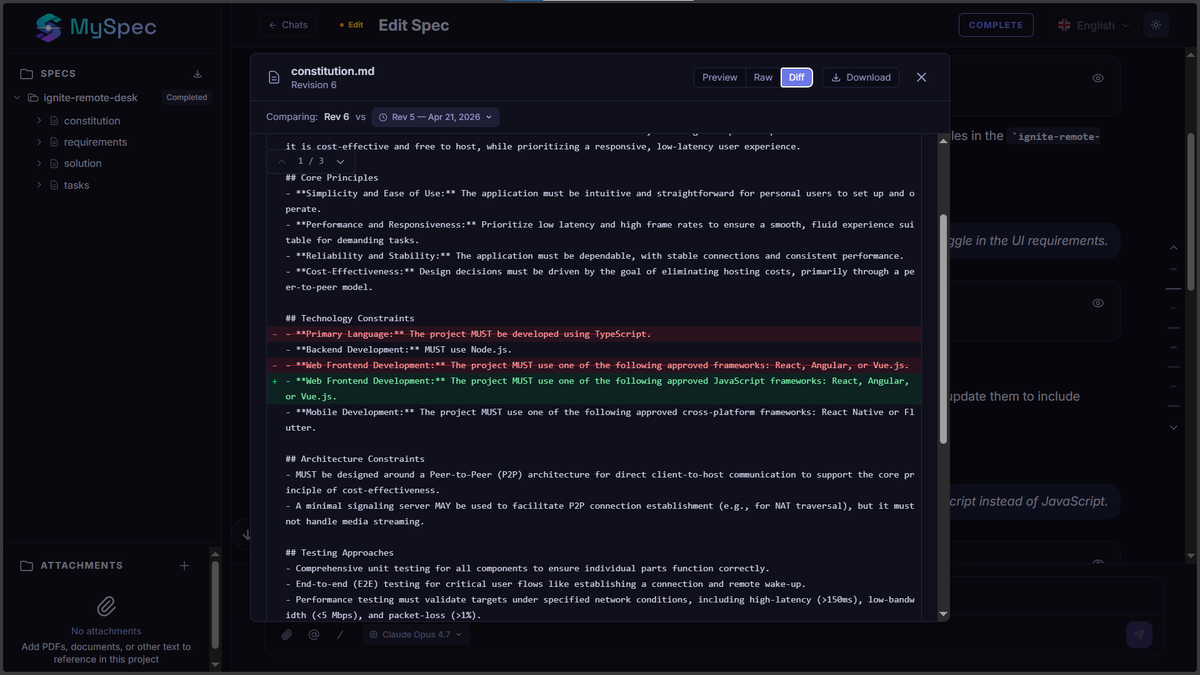
After the changes are applied, MySpec shows you a Diff Preview. You can check this in the project sidebar.
Green lines: Added content.
Red lines: Removed content.
Pro Tip: Check that the changes align with your intent. If you asked for "PostgreSQL," ensure the design.md schema syntax changed from JSONB (Mongo) to SQL tables.
Step 4: Proceed or go back to previous step
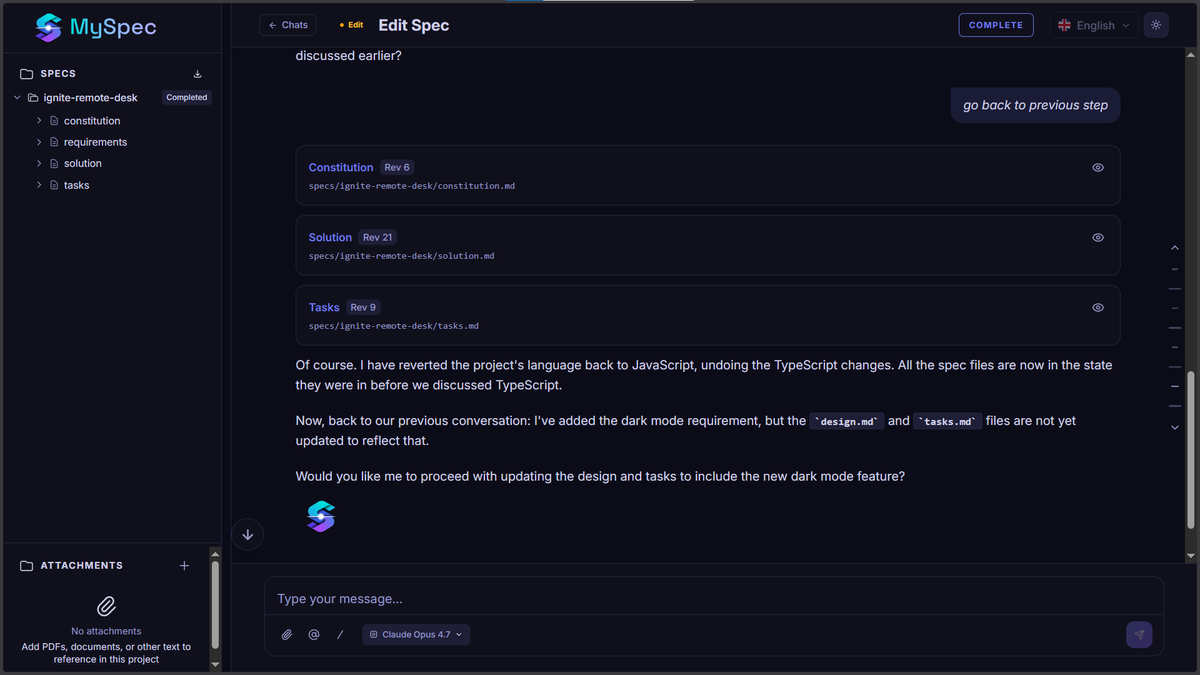
The files update instantly after the agent respond. If you want to revert back to before the edit, you can prompt the agent to do so
Reply in chat: "Go back to previous step".
Step 5: Verify Consistency
Check your other files' preview. Notice how tasks.md automatically updated to reflect the new technology? That’s the power of the interconnected spec bundle.
💡 Pro Tips for Power Users
1. Use "Constitution-First" Language
If you’re changing a core constraint, mention it explicitly.
"Update the constitution to enforce strict TypeScript typing. Then refactor the design to match."
2. Batch Your Edits
Instead of 5 small chats, combine related changes.
"Let's pivot the tech stack: Switch to Next.js, use Supabase for backend, and add Stripe integration for payments." (MySpec will handle the cascade of changes across all 4 files.)
3. Leverage Version History
Made a mistake? No worries.
Go to project folder on the Sidebar > Preview (eye symbol).
Download a previous version of requirements.md or the entire bundle.
Every chat edit creates a new revision, so you can always roll back.
4. Ask for Explanations
Unsure why MySpec made a change?
"Why did you add an index to the users table?" MySpec will explain the reasoning based on your query patterns and performance requirements.
🔄 From Spec to Code: The Handoff
Once you’re happy with your edits via Vibe Specify’ing:
Export the Bundle: Click "Download ZIP" from
Place in Repo: Save files to .specs/ in your project root.
Prompt Your AI Coder:
"Implement the user authentication module. Follow the specifications in .specs/requirements.md and .specs/design.md. Ensure compliance with .specs/constitution.md."
Because you used Vibe Specify’ing to keep the specs consistent, your AI coder (Cursor/Claude) will generate code that actually works together, reducing rework by up to 70%.
❓ FAQ
Q: Can I edit only one file? A: Yes, but we recommend against it. If you say "Edit requirements.md only," MySpec will warn you about potential drift. It’s safer to let the AI propagate changes where necessary.
Q: What if I disagree with a suggestion? A: You’re the architect. Simply say "Revert that change" or "Do it differently: [your instruction]."
Q: Does this work on mobile? A: Vibe Specify’ing is optimized for desktop/tablet (768px+) where developers typically review specs. Mobile support is coming in Q3 2026.
Ready to refine? Open your project and start chatting. Your spec is alive—treat it like a conversation, not a document.
Join the MySpec Open Beta and experience Vibe Specify’ing today.